
How to Set Up and Use Auto ISO on Fujifilm Cameras
Disclosure: This post may contain affiliate links. I earn a small commission of product sales to keep this website going.
One of the biggest changes in my own photography came when I finally stopped treating ISO like it was still 2006.
Back then, shooting over ISO 400 meant ugly noise, so I did everything I could to avoid it. I slowed shutter speeds, tried to handhold too long, and ended up with more soft images than I care to admit.
Modern sensors are a different story. Even older Fujifilm bodies like the X-T2 and X-E3 can produce very usable images at ISO 6400, even 12800. On current cameras, it’s often a non-issue for most photographers.
And that’s exactly why you should be using Auto ISO.
Note: The “how-to” below is Fuji-specific, but the concepts apply to other brands too. Check your manual for details.
Here's the video version if you'd rather watch this:
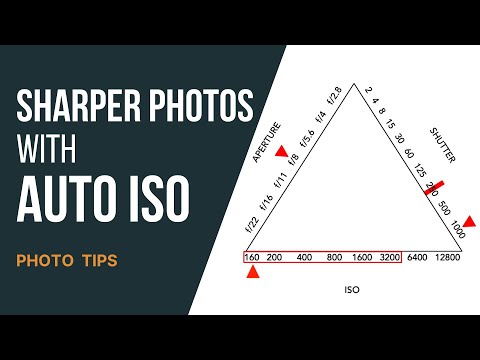
The Aperture Priority Problem
Aperture Priority is a popular way to shoot with Fujifilm cameras.
You:
- Set the aperture (for depth of field)
- Let the camera choose the shutter speed for correct exposure
Most photographers who “set ISO manually” leave ISO low for the cleanest image. That sounds logical, but it creates a big problem:
If the light gets low and you’re not paying attention, the camera might choose a shutter speed that is too slow to handhold or freeze your subject. The result is soft, blurry photos from motion or camera shake.
This is where Fujifilm’s Auto ISO saves the day.

What Auto ISO Does
Auto ISO lets the camera raise or lower ISO within a range that you set, so it can keep your shutter speed high enough to avoid blur.
This is the real power:
- You can set a minimum shutter speed
- The camera will raise ISO as needed to maintain that speed
- Only if it runs out of ISO will it allow the shutter to drop slower than your minimum
Think of it as Aperture Priority + safety net for shutter speed.
Most current Fujifilm X bodies let you store three different Auto ISO presets: AUTO1, AUTO2, and AUTO3.
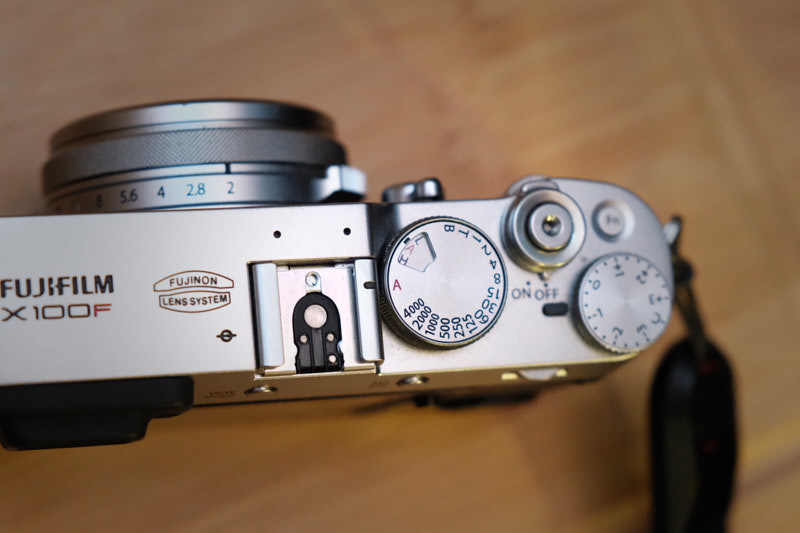
How Auto ISO Works on Fujifilm
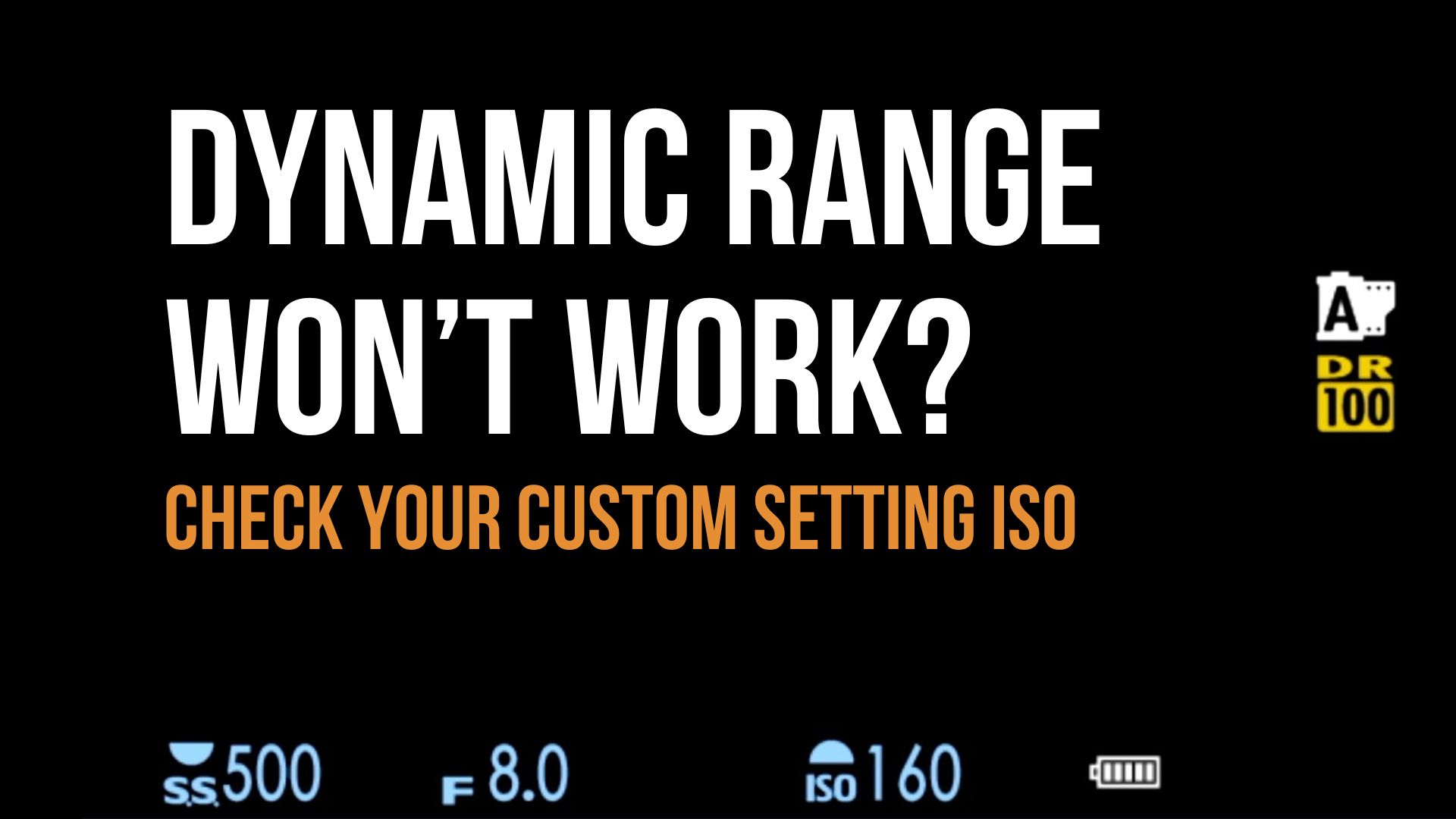
A quick note: if you’re using Dynamic Range (DR) settings like DR200 or DR400, the camera may use a higher minimum ISO than your programmed minimum. That changes the “low end” of your Auto ISO range. I have a separate article on that if you want the full explanation.
Case 1: ISO and Shutter both on “A” (Aperture Priority + Auto ISO)
With ISO on AUTO and the shutter dial set to A:
- The camera tries to use the lowest ISO in your chosen Auto ISO range.
- It then chooses a shutter speed that gives the correct exposure.
- If that shutter speed would be slower than your minimum:
- The camera starts raising ISO to keep shutter speed at or above your minimum.
- If it hits your maximum ISO and still needs more light:
- It finally allows the shutter speed to drop below your minimum.
Example:
- Auto ISO range: 160-3200
- Minimum shutter: 1/250 s
If the scene needs 1/125 s at ISO 3200 for correct exposure, the camera will: - Stay at ISO 3200
- Drop the shutter to 1/125 s to get the exposure right
You still get the shot, just at a slower speed than you requested because the camera ran out of ISO headroom.
Case 2: ISO on “AUTO,” shutter set to a specific speed
With ISO on AUTO but the shutter dial set to a specific speed (not A):
- The camera holds that shutter speed
- It adjusts ISO anywhere within your programmed range
- If it runs out of ISO and still needs more light, your image will be underexposed
This is powerful when you must have a certain shutter speed and are okay watching your exposure and histogram yourself.

When to Use Auto ISO
Personally, I use Auto ISO most of the time now.
I only go fully manual with ISO when I’m:
- Shooting long exposures
- Doing more deliberate “full control” work where I want to lock everything
For day-to-day photography, travel, people, and changing light, Auto ISO lets you worry less about settings and more about the scene. Don't be afraid of higher ISO values - they can save your bacon.

How to Program Auto ISO on Fujifilm Cameras
Details vary slightly by camera, but the logic is the same.
You’ll tell the camera:
- Minimum ISO (usually 125 or 160 on modern bodies)
- Maximum ISO (where you personally start caring about noise)
- Minimum shutter speed (what you need to avoid blur)
You can also set min shutter to AUTO, which ties the minimum shutter speed to your focal length (the old “1/focal length” rule):
Auto minimum shutter speed (AUTO)
When you choose AUTO for minimum shutter speed:
- The camera picks a shutter speed around 1 / focal length
- Example: ~1/40 s with a 35mm lens
- With a zoom, it updates as you change focal length
This is great for:
- Still scenes
- Landscapes
- Static subjects
It's not always enough to freeze people or fast movement, so keep that in mind.
Step 1: Decide What You Need From Auto ISO
Your settings should match your style. A landscape shooter will use Auto ISO differently from a street photographer.
Here is how I personally set it up after a lot of trial and error.
AUTO1 – General people/travel. My everyday setting:
- ISO: 125–6400
- Minimum shutter: 1/250 s
Why:
- 1/250 s is fast enough to freeze normal movement for people and everyday life
- I don’t mind some grain; sharp beats “clean but blurry” every time
- Works well for travel, portraits, street, documentary
AUTO2 – Landscapes and still subjects. For when I’m not worried about people moving:
- ISO: 125–1600
- Minimum shutter: AUTO
Why:
- AUTO minimum shutter based on focal length keeps camera shake under control
- ISO caps at 1600 for cleaner files
- Ideal for landscapes, architecture, still life, scenes where nothing is moving quickly
AUTO3 – “Emergency, I must get this shot”. Noise doesn’t matter. Sharpness does:
- ISO: 125–12800
- Minimum shutter: 1/125 s
Why:
- Gives the camera permission to push ISO very high
- 1/125 s is still usable for most situations if you are steady
- This is for those times when you’d rather have a noisy but sharp photo than nothing at all
Once you know how you want to use Auto ISO, it’s time to program it.
Step 2: Program Auto ISO in the Menu
Exact menu names vary, but the path is similar on most X bodies.
- Press MENU/OK
- Go to Shooting Setting
- Find ISO or ISO AUTO SETTING
- For AUTO1, AUTO2, AUTO3 set:
- Default (lowest) ISO
- Maximum ISO
- Minimum shutter speed (or AUTO)
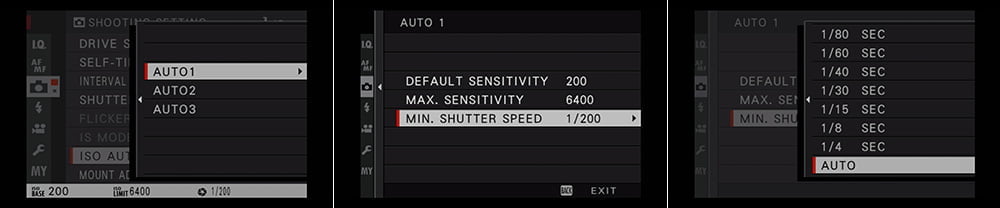
That’s it. The camera now “knows” how to behave in each Auto ISO mode.
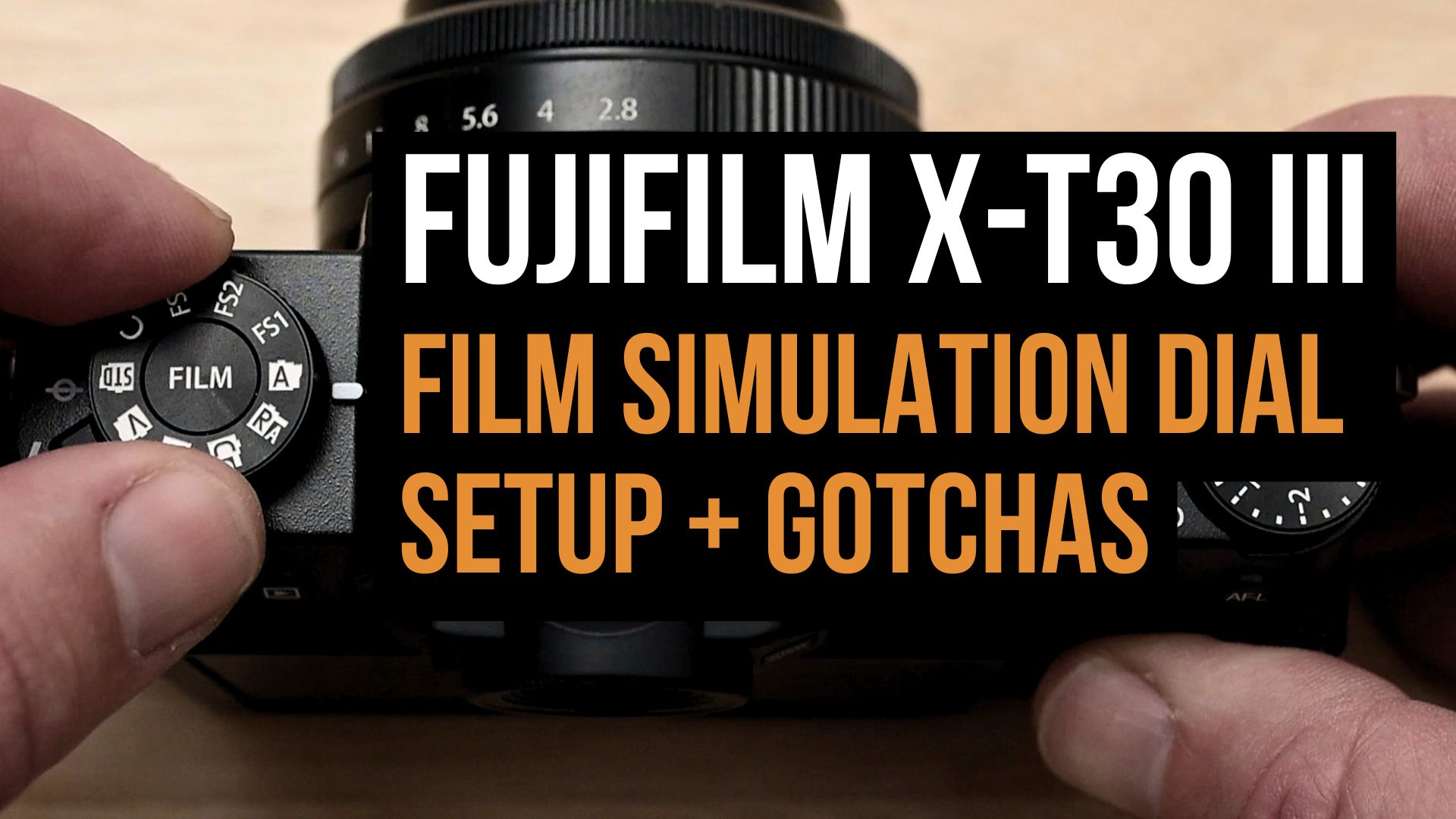
If you're programming AUTO ISO while in a Custom Setting (C1-C7), note that these programs aren't "global"; they're unique to that custom setting.
Step 3: Assign a Quick Way to Change Auto ISO
This is what makes Auto ISO truly useful: being able to switch quickly.
On older cameras (X-T2, X-E3, X100F), I used the front command dial:
- In Button/Dial Setting, set ISO DIAL SETTING (A) to COMMAND
- Rotating the front command dial lets you switch between AUTO1, AUTO2, AUTO3 on the fly
Newer cameras removed some of this behavior. I miss it. On newer bodies, I recommend:
- Assigning ISO AUTO SETTING (or ISO) to a custom button:
- Hold DISP/BACK
- Choose a button
- Assign ISO AUTO SETTING (or ISO)
- Or at least add ISO / Auto ISO to MY MENU so it’s one button away from MENU/OK
Overriding Auto ISO in a Pinch
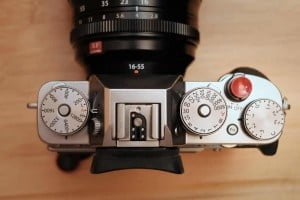
Here’s one of the best parts of Fujifilm’s design.
You can:
- Leave ISO on AUTO,
- But quickly override shutter speed by turning the shutter dial.
Example:
- You’re walking around in Aperture Priority with AUTO1 (min shutter 1/250 s)
- Suddenly you want motion blur in a scene (say, people walking through a frame)
- Quickly twist the shutter dial to 1/30 or 1/60 s
- The camera keeps ISO in AUTO and adjusts ISO for proper exposure
Now you’re effectively in Manual exposure mode, but letting the camera worry only about ISO.
When you’re done:
- Turn the shutter dial back to A
- You’re right back to Aperture Priority with your programmed Auto ISO behavior
No menus. No scrolling. Just use the dials.

In the above example, I was in and out of buildings, shooting in AUTO ISO to maintain a fast enough shutter speed to freeze movement as I bounced between lighting situations.
But as I watched this scene, I wanted to show a subtle movement to put the viewer there. I quickly dropped my shutter dial to 1/60 and snapped this photo during the action.
Before going back outside, I put the shutter dial back in AUTO to give me the minimum of 1/250 that I had programmed for sharp images in the AUTO ISO menu. I was now back in Aperture priority and a pseudo-shutter priority with the Auto ISO.
The Last Step: Practice
The key to making Auto ISO work for you is familiarity.
- Practice switching between AUTO1, AUTO2, AUTO3 without thinking
- Learn which one you want for:
- People
- Landscapes
- “Emergency” moments
- Pay attention to how minimum shutter and max ISO choices behave in your real-world shooting
You don’t want to be shooting a landscape in AUTO2, then turn around for a quick portrait and realize you’re at 1/30 s when your subject moves. The goal is to build enough muscle memory that you switch modes instinctively.
Once you get comfortable with Auto ISO, your hit rate on sharp, correctly exposed images will go up, and you’ll spend less time fighting your camera and more time watching the scene.
If you want more help dialing this in on your specific Fujifilm body, my Fujifilm camera tutorial courses walk through setup, menus, and practical use step by step. You can use code "blog20" for 20% off.
How do you have Auto ISO set up on your Fuji?
This is precious information. Thanks a bunch!
Thanks for the feedback - AUTO ISO is underutilized by too many photographers!
I've notice something strange with my X-T2 and Auto ISO: sometimes it will not use the maximum ISO set and instead it will go below the minimum SS that I've set in my Auto ISO settings.
Hmmm I've never seen that before, I don't know what to tell you. There's no chance that you've moved the shutter dial out of AUTO?
@Manuel Yanez, the same with me, but my camera ia a X100V...you discover what is the problem?
Great article, thank you!
You’re welcome Eric! I hope you come up with some great custom settings.
I found the article very interesting and I have set up auto iso on my fuji xt2 and will give it a try.
One question though , do the auto iso settings only appear at the end of the standard iso list when you rotate the front command dial ?
Is it possible just to cycle through the three of them , and not all the other iso settings ,using the front command dial ?
Iso dial is set to auto and my xt2 has the latest firmware.
Hi Brian, that'd be a great way to do it but it's not possible right now. It'd be worth recommending to Fujifilm though.
When I go to AUTO ISO on the top dial, I set either 1, 2, or 3 with the front command dial THEN PUSH the front command dial so it goes back to controlling shutter speed. I've accidentally gone from AUTO ISO1 to ISO51200 when the dial gets bumped, not noticing it, and missed a few good shots. So it kinda "disables" that button when Auto ISO is set.
Very nice article, I have set-up my x-t20 with it and immediately saw my shots improving, thanks!
That's awesome Jacco, glad it helped - it certainly helped me!
New E3 owner. This was a helpful article but it’s missing how Exposure Compensation interacts with Auto ISO. EC does not seem to operate if you’re in full manual as it does in Nikon DSLRs which is a problem in that you cannot increase or decrease your exposure relative to what the meter calls for as any change you make in shutter speed or aperture is compensated for by a change in ISO. I’m hoping I’m missing something.
Hi Les, it took me a minute to wrap my head around that but I'm pretty sure I know what you're asking. So, "full manual" with Fujifilm cameras means that ISO is in manual also. If any of the three - shutter, aperture, and/or ISO - are in AUTO, EC will control any of the variables set to AUTO, including ISO. If you want to adjust your shutter speed without the ISO changing, you need to put the ISO in manual. Is that what you were asking?
@Les Brown, yes this is true
Hi,
Thank you for this precious info.
I've found another way of switching from an auto iso setting to another (from Tony Phillips' book): set the auto iso Fn to the Left arrow -> you can now press left, this opens the auto iso quick menu, choose the auto iso with up and down, then (important) press left again to quit the quick menu. It will save your auto iso setting on-the-fly without leading you to the full auto iso menu setting.
Hope that helps.
1 question though: my lens is 18-55mm f2.8. If I set the shutter speed to auto, does it automatically adapt to the new focal length as I zoom in and out?
Ah yes that’s another good way of doing it if you don’t already have those buttons mapped to anything.
And yes! The processor will account for the focal length you’re at, changing your minimum shutter speed as you zoom. I love that feature on lenses with longer throws, like my 18-135mm.
Thank you so much for this 🙂
I'm just wondering. Is there any way to prevent the Shutter from dropping below the minimum you've set, even if the camera is detecting that the scene is underexposed?
Many thanks again for the detailed post.
You're welcome and thanks for writing.
The only way to absolutely prevent that is by taking your Shutter Speed dial out of Auto and setting a specific shutter speed.
Otherwise you can try setting a higher maximum ISO, a wider aperture, or lowering the exposure compensation. The camera will always lower the shutter speed in AUTO ISO if it deems it necessary to get the exposure.
Super helpful article! This is exactly what I needed as I've been getting familiar with my recently acquired X-T3.
Question: Why does your emergency-scene-capturing Auto setting have a slower (1/125) minimum shutter speed than your everyday Auto setting (1/200)? Shouldn't the emergency Auto shutter speed at least match or exceed the everyday one? I would have expected something like 1/200 with ISO 12800.
Thanks Preston, I understand what you're saying.
But using a slower shutter speed gives me a little more latitude in poor lighting. It basically gives me two-thirds of an extra stop of light, for times when I'm more concerned about just getting the exposure rather than having a fast shutter speed to freeze motion.
What are your "emergency, gotta capture the scene" situations? What makes them not capturable under your AUTO1 settings? Is it just that they're even more low light (but less motion)?
Yeah so just to give you an example, I was in Africa earlier this year photographing some outdoor education programs. Very bright, lots of movement. They quickly grabbed me to go inside and photograph a meeting, which was only lit by a doorway, and I couldn't grab a speedlight. All I had to do was click over to Auto3. There was a little bit of blur in their hands with the gesturing, but that added some dimension to the photos. It just gave me a little more to work with in regards to exposure in an unexpected situation.
I also have the 18-135, but when using auto ISO with minimum shutter speed set to AUTO, my X-T20 completely disregards the (excellent) OIS of that lens. At the wide end 18mm it gives me a minimum shutter speed of 1/25. Not bad, but with OIS I can get sharp shots at 1/4, so the ISO is cranked at least 3 stops higher than it needs to be. Fully zoomed at 135mm it's giving me a shutter speed of 1/200—still following the inverse of the focal length, but at least 4 stops faster than it needs to be for a non-moving subject. Do the cameras that you use exhibit the same behaviour?
This makes the AUTO minimum shutter speed kind of useless for me as a method of preventing camera shake while keeping ISO as low as possible. I'm finding the shutter speed settings for Fuji kind of useless in general, seem to be designed by and for people who are stuck in the mindset that being in manual mode will somehow yield a technically better image (when the opposite is true in this case).
In nearly a year of using Fuji X cameras, I can only think of two situations in which using the shutter speed dial was advantageous: fixing exposure for timelapses (full manual), and panning shots where you're looking for a specific amount of blur . 99% of my photography, however, (portraits, wildlife, street, still life, macro, architecture) is about keeping ISO as low as possible while prevent either camera shake (always) or freezing movement (at my discretion). And doing that simple thing is a serious PITA with my X-T20.
Yeah, unfortunately it doesn't take OIS into consideration. I've handheld that lens down to a half-second at about 50mm and still got a sharp image, which completely blew my mind.
Lesson learned is that AUTO ISO is completely situation-dependent and photographer-dependent based on goals and tastes. It's an imperfect "nice-to-have" feature that can really help some people; others will have to do things the old-fashioned way. And that's true for all camera brands.
I too hardly ever touch the shutter dial, mostly leaving it in A except for the situations you described. However, I've found that these settings yield ISO values that I'm perfectly happy with, i.e. I don't really care if it's 800 when it could probably be 200. Mostly because I don't consider myself a "fine art" photographer who needs zero noise, and there's honestly not much difference between 800 & 200 noise unless you're viewing at 100% and specifically looking for noise, which isn't how anyone (other than photographers) really views images. But that's just my opinion and why it works for me.
If you absolutely need the lowest ISO possible and don't want to touch the shutter dial, then I'd recommend just leaving the ISO in manual and keeping an eye on what the automatic shutter speed is giving you, ensuring it's not too slow, and raising the ISO if it is (like photographers had to do before AUTO ISO was a thing). I hope that gives you some encouragement.
Thanks for the reply and recommendations. Let me clarify one thing: I happily take photos at 12800 and still think they're acceptable for py purposes. But if that exact same photo could have been taken at 3200, that just doesn't sit well with me. I ultimately moved to Fuji from my smartphone for better image quality and better handling/controls (so no, I've never changed ISO by swapping the film roll), and although I love my X-T20 overall, the shutter speed controls are a fail in my mind.
I've current got the auto ISO minimums set up across three different custom setting groups, but this is an extremely cumbersome system. Meanwhile the shutter speed dial—one of the drawcards of the X series for many I'm sure—sits there unused.
Allow me to elaborate with an example. I'm outside late afternoon shooting birds in flight. I'm using using auto ISO with a minimum shutter speed of 1/500 (because that's the fastest that Fuji allows). If clouds come over, the ISO will ramp without risking motion blur—so far so good. I see a perched bird and since it's still cloudy/dark, I want to lower the shutter speed. I've mapped ISO to a direction pad button so with three clicks and a bit of concentration I can get the lower minimum shutter speed and take the shot. If I used the shutter speed dial, I'd risk overexposing if there were more light than I thought or conditions suddenly changed since I'm controlling the aperture as well. Then as the sun sets I'd like to take some landscape shots. At the wide end I know I can shoot at 1/4, so that's what I want my minimum to be. Then I want to zoom in and take another shot, but I'd need at least 1/15 to prevent camera shake. Since only three auto ISO settings are allowed within each custom setting group, I'd need to switch to a different custom setting using the quick menu or another Dpad shortcut, then select the desired auto ISO.
Is it too much to ask to be able to do this efficiently? Are the people that are bothered by images being noisier than they need to be really such a minority?
AUTO ISO is a wonderful aid, but that's all it is - an aid. On the "history of photography" timeline, it's one of the newest additions to photography. We're lucky to have it. Ten years ago only a few cameras had it, and it was extremely basic then. But we need to understand where it's useful and where it's not. You'll find some situations where it's very useful for what you do, and other situations where it's useless. It's not going to work for everything, and we need to accept that. That's true about every feature that cameras have. And I'm not sure if I understood what you said about "risking overexposure by using the shutter dial," but if you override AUTO ISO by clicking your shutter speed out of A, you're only overriding your set minimum shutter speed. Your camera will still give you automatic exposure control using the ISO range you've set in that AUTO ISO program. So if your AUTO ISO program is, say, 200-6400 with a min shutter speed of 1/500, and that bird is perched so you want a lower ISO with a slower shutter speed, just click the shutter dial to 1/125 and you'll still get the same exposure but at an ISO two stops lower.
To honestly answer your question, no, not many photographers who use AUTO ISO care about their pictures being "noisier" than they need to be - it's more about the moment. That's part of leaving it up to the camera. You're not going to have that kind of fine control. For those who do make "as little noise as possible" a priority, they're better off using manual ISO - and that's totally fine. It's what we did for over a hundred years before this feature came along.
I never look at what ISO value the camera gives me when I'm doing documentary photography, because it's about the story, and AUTO ISO helps me get the story. My editors would agree. It doesn't matter if it was 1600 where it probably could have been 400. I just don't care, as long as I captured the moment. But if I wanted "the cleanest" image, I'd be in manual ISO.
My recommendation would be to find times where it helps you. Where it doesn't, embrace the challenge of learning a different technique that will work better in those situations.
Great remarks, and I very much appreciate you taking the time to respond. I agree with virtually everything you've said, and I think where we differ just comes down to our styles, photographic background etc. But allow me to play devil's advocate for a moment 😀
I understand that a minimum shutter speed doesn't apply to all situations, however, by my estimate, it's objectively superior for 99% of the photos that I take. I'm not talking about some photographic niche either—my photos are travel-related, of family, events, pets... food (so I guess you could call that documentary) and occasionally I'll try my hand at wildlife and macro.
Let me clarify the overexposed bird scenario: the risk isn't actually of getting an overexposed photo, the risk is of getting no photo at all since you may have to tweak the shutter speed faster again to ensure proper exposure, which takes time (the bird ain't gonna wait). Again, you can simply leave the shutter speed high and cop the extra noise, but if you crop heavily into the shot in post you will notice the increased noise.
Absolutely it's more about the moment. But if it were purely about the moment, we'd just use the smart phone in our pocket and call it a day. I know that's a bit hyperbolic, but camera sales are being eaten by ever-improving smart phone cameras, and if camera brands can't even design an interface to efficiently get the most out of their bulky and expensive hardware, then they deserve to go extinct (OK maybe that's a touch dramatic).
Sure if I wanted the cleanest possible image I'd be in manual ISO or manual shutter speed. I'd carefully adjust the shutter speed to ensure it's fast enough to prevent camera shake at my current focal length and freeze subject if applicable. If the scene's overexposed, I'd carefully increase the shutter speed on the dial until the exposure looks about right, then adjust with the wheel until it's perf—damn, now someone's standing in the scene blocking the view and the tour group's already 100m down the road!
Maybe it's my interface design background, but I'm loath to embrace a design that is, in my opinion, objectively inferior and so poorly thought out (and in the case of auto min s/s not taking OIS into account—broken). And I probably wouldn't get so worked up about it if I didn't love my X-T20 so much for its other fantastic attributes.
End rant
As much as we think it would help, there's nothing worse for learning photography than an engineering background (and mine is in EE). I have to "quarantine" that side of my brain whenever I pick up my camera, otherwise, I'd be as frustrated as you.
This is an easy fix and I'm sorry I couldn't fully explain it last time.
If you're in AUTO ISO and need a different minimum shutter speed for that specific moment, just rotate that shutter speed knob to what you want. It's that easy. You don't have to touch anything else as long as your aperture and ISO range are reasonable. You would hate having to do this on a Canon, Nikon, or Sony; Fuji is the easiest. When I teach students who are using those cameras it totally pains me to show them how to address these scenarios cause I wish they just had a Fuji. And BTW, most of those other cameras only allow you to program one AUTO ISO setting.
You're still not in "full manual" mode and don't have to worry about your exposure changing. You're in "aperture-shutter priority" which is still an automatic exposure mode. Doing a wide-angle landscape? Look at the top of the camera and set the shutter to 4. Then see an eagle flying and want to freeze it? Go seven clicks to 500; it'll take a fraction of a second for you to do that. Then want to do a portrait of a friend? Go two clicks to 125.
Unrelated photometry imperfections aside, your exposure will not change; it's still based on your exposure compensation dial. If the exposure does change, it's because your aperture is too large or too small to give you a proper exposure with the shutter speed you selected and the ISO range you've set. At that point, it's not the camera's fault - that's the photographer's misapplication of the basic exposure triangle.
Go out and shoot only in this "aperture-shutter priority" mode to see how it works and get good at it.
Fujifilm designers are probably the best in the business when it comes to listening to user feedback and making UX changes. If everyone hated this design, it'd be different by now for sure. If you think you have a better solution, let them know, they're open to feedback.
If I need to try catch something fast and don't have time to adjust to a faster minimum ISO, I use the dial. However, I always shoot with a specified aperture, and unless I'm doing landscapes or close-ups it's generally wide open. So I do run the risk of having an overexposed scene on a sunny day for example until I further adjust the shutter speed to be faster, but it's just an annoyance, not a deal-breaker. Interesting comment on using other systems—I suppose I should be counting my blessing being with Fuji! The PASM dial is such an illogical design that I'd sooner shoot with my mid-range smartphone than one of those (even if it's a Fuji).
I realise that a camera can't be at fault if it's working as designed—but that doesn't mean it can't be improved. I also didn't mean to disparage the Fuji designers in any way—I think overall they've done a great job (although the Q-button placement on the X-T30 is another matter 😉 ). As you said, they respond to their customers and the market in general, and if their customers don't complain about a bit of unnecessary noise and not getting the absolute highest change of capturing sudden action, then what incentive do they have.
I will look into getting in contact with Fuji about this (once I can find the appropriate channel), but this conversation has very much helped to clarify my thoughts on the topic. Just in case you're interested, my recommendations would be something along the lines of:
- Add a new option to the minimum shutter speed setup menu (where you currently have 1/500 to 1/4 and AUTO) called AUTO+DIAL. This would work the same as the existing auto mode, except when you change the shutter dial from auto to a specific speed, that chosen speed will now act as the MINIMUM shutter speed. While allowing the camera to shoot at a speed that differs from what's been manually selected on the dial might irk some, I think it's the most elegant way to utilise the shutter speed dial in a more modern and useful way without changing the hardware. It's also completely optional and there's basicaly no chance you'll activate it by accident. Once the action's passed and you want to shoot a static subject, just put the dial back to A and you can trust that hand shake will be controlled at any focal length. If you want a longer exposure on a tripod, set a manual ISO (or choose a different AUTO ISO setting with a low range).
- Show minimum speeds on the display/EVF. Put the minimum speed with a + symbol next to it, maybe use a different font colour. Once the exposure has been calculated, this gets swapped out with the actual speed.
- Allow auto minimum shutter speed to take advantage of OIS. Fuji should be able to detect the OIS capability based on the lens model (i.e. how many stops it claims to stabalise) and whether OIS is turned on or off, so it seems like this should be technically possible without hardware changes.
- Allow the user to modify the auto shutter speed to be a percentage slower or faster than whatever is calculated, to cater for people with shaky hands or people who just like a larger margin of error/shake.
It seems like all of this should be doable simply via firmware update. Not that I'd get it on my X-T20, but it'd be a pretty compelling reason to upgrade 😉
For anyone interested in enhancements to minimum shutter speed for Fuji X cameras, I've clarified my thoughts into an article which can be found here: https://medium.com/@jade.steffensen_34722/fixing-fujifilm-shutter-speed-e123fd471d66?source=friends_link&sk=ea18a2be29cd734f2a644d31688dccca
I'm trying to get as much feedback as possible on this before taking these proposals directly to Fujifilm.
(BTW the previous comment is supposed to be in reply to one by John Peltier on January 9, 2020 at 10:14 am, but I think we exceeded the comment depth limit)
Great ideas, I especially like being able to adjust minimum shutter speed on the fly somehow.
Newer Sonys do have a "Fast/Faster/Slow/Slower" choice to refine the "Auto" minimum/focal length shutter speed, but I don't see that as a "set and forget" setting. At least they're trying to give more options. And too bad the rest of Sony UIX is THE WORST!
Thanks for the feedback! It always baffles me how these huge camera companies can put out UIs that are so poorly designed. I'm kind of intrigued to try out the Sony UI now—maybe I'll have to drop by the local camera store and see if they have one on display.
That is all very well, but my xt-30 does not show me the values decided by the camera when in auto iso mode.
Even worse, if you also set the ss to auto you are made only aware of aperture (let's say I set it manually on the lens) and exposure correction (for example set to C) Not even halfway pressing the release button gives you a clue what those final values of ss and iso will be.
In comparison, my canon gives me all 4 values, that is f-stop, ss, iso and exposure comp at all times even without pressing the shutter release half way.
So here I know when to adjust the camera algorithm. For example if the camera gives me a combo of 1/1000sec plus iso 400. I can quickly 'adjust the curve' and dial up speed to reduce iso to 100.
Does this 'tapping' in the dark not bother any other fuji users I wonder?
The whole point of using AUTO ISO is so that you're not bothered by those parameters in situations where all you care about is, "is the shutter speed fast enough to give me sharp photos". It frees up brain bytes to concentrate more on your composition and the story. I care exactly 0% what my shutter speed and ISO are in those situations, because I've told my camera I'm 100% okay with it operating in a range that I've defined.
In fact, I'd prefer to *not* know what my shutter speed and ISO are because that's one less thing to distract me. I should care more about what's happening in front of my lens than the numbers in the viewfinder, because I've given my camera permission to operate within a range. The exception to this is in low light, but all it takes is a few seconds to figure out which aperture, shutter, ISO, and/or artificial light you need to make it work.
Does AUTO ISO work for all genres, subjects, and styles? Nope. But when I need to work fast, and all I need is a minimum shutter speed, AUTO ISO is a godsend. If you're constantly asking yourself, "which ISO/SS is the camera choosing" before each and every photo, then AUTO ISO isn't for you because you're not comfortable with the "auto" part.
Hi John, I understand what Martin means. If you set your ISO to AUTO ISO, you see in your display for example "AUTO 3 ISO 3200". But it does not show you what the actual ISO value decided by the camera's calculation would be. That would be a helpful aid. Especially if you shoot in Manual Mode with Auto ISO, because you want a faster shutterspeed than the minimum of 1/500. You cannot set a minimum of 1/1000 in the Auto ISO settings. But you can set SS manually to 1/1000 in M mode, and let the camera decide on ISO, using Auto ISO. This combination is what I find ideal for fast-moving subjects like in sports photography, where one would care less about a little noise but wants to be sure of sharp pictures and less motion blur.
John, great video and explanation, however I cannot seem to get this to work...
Some help please using XT3 with Auto ISO
Setup:
XT3
XF 16-55 - set at 23 mm
ISO A, F8, SS A
Auto ISO settings:
Default Sensitivity - 160,
Max Sensitivity - 3200,
Min Sutter Speed - Auto.
However when I expose for an image I get the following settings ISO 300, SS 1.3”
What other settings do I need to change to get Auto ISO to work?
thanks in advance Paul
Hi Paul, that's an interesting problem. I have no idea why it would go to an ISO of 300 if all of your settings are indeed as you said they were. If your lighting was that low where it would require 1.3" at f/8 and ISO300, it should have gone straight to your max ISO of 3200 first before slowing down your shutter speed. I'd just double check what's in that Auto ISO program and verify that you're indeed using that program when you're photographing. I've never come across anything like this.
Hi John
I just bought a new X-E3 and obviously now I'm in the process of setting all things up. Your article is very helpful but I came across with one problem so far. My ISO settings H (25600/51200) and L (100/125/160) are inactive (in grey colour) so I can't choose them for any of the Auto ISO modes. This is the same with Fn button which I dedicated to ISO setting (the above ISO values are inactive). Do you have any idea why is that. I set my camera for Aperture Priority. I think that somewhere in settings I set something that disabled these options but what could that be ?
Thanks in advance Piotr
Hi Piotr, sorry for the late reply, my X-E3 was in my studio and I just got back to it.
You'll be unable to select any of the expanded ISO settings (100, 125, 160, 25600, 51200) for AUTO ISO since the method this ISO uses is different than the "standard" camera ISOs. This is true for all Fujifilm X cameras, at least all the ones I've owned.
If you're still unable to select the expanded ISOs in regular camera operation, I don't know why that would be. I changed some other settings around I thought might affect that and couldn't find anything. If you're still unable to select those values in regular operation, all I could recommend is doing a "set-up reset", found in the User Setting menu.
is this feature also available for the movie mode? like it said, i love aperture mode for vlogging.
yet the iso sometimes doing crazy push up to 12k when they find a rather darker area in bright sunny day.
from x-t4 user
Unfortunately, no. You can set the camera to Auto ISO but it's not programmable in Movie mode. If you're having that problem on a bright sunny day and the light isn't changing, just record in manual mode. Set your aperture for desired depth of field, set your shutter speed to twice your framerate, then adjust your brightness manually with the ISO knob.
Just want to say I appreciate the explanation of how minimum shutter speed of AUTO has an algorithm to look at the focal length of the lens and sets the speed to the inverse of the lens. That's the rule of thumb I always use and to know my Fuji does that automatically is a comfort.
Thanks much for this very helpful and detailed explanation. I bought my first ever digital camera last year, an xt3, and have been struggling to get the settings right. My last cameras were old Nikon and medium format cameras and the simplicity of them is shocking compared to what's possibly on my xt3. I mostly shoot my dog and landscapes but have been struggling with action shots. But after reading this I've got a much better grasp of what I need to do. Thank you much!
Also, I loved your photos of Morocco. We visited there years ago and it's such a photogenic country!
Yeah it's amazing what this one little setting can do for your photography! Cheers.
Great article. When I use auto ISO on my X-S10 the scene through my EV always shows as the highest ISO value and only changes when I half press my shutter release. This makes it difficult to set my exposure. Is there a setting I am missing that would make it preview the scene as is without half press?
Unfortunately, that's just the nature of Auto ISO. If you're leaving it in Auto, then theoretically you shouldn't really care what the ISO is (otherwise you'd be in Manual), so the actual value displayed shouldn't matter.
As far as previewing what the actual picture looks like in your display...it should be doing that all the time already if you have these two settings in your Screen Setting: Preview Exp/WB in Manual Mode Preview Exp/WB, and Natural Live View Off.
This entire article was extremely extremely helpful to someone like me who is slowly learning my X100F. Excellent excellent walk thru. So glad I found this.
One question that you may have answered - I seem to notice that in Auto ISO mode (with Auto ISO, auto shutter speed, and lens wide open at f/2), shooting in really dark conditions (for experimentation purposes), where I guess underexposure is unavoidable - the camera will still drop to a slower shutter speed than the minimum you have set? It seems like it's not a hard lower bound - is that correct?
That is true - your ISO limits are “hard stops” but if the camera still needs a slower shutter speed to get the exposure that you’re asking for, it’ll do it.
Hi John,
This was an excellent article. On my new X-T30, though, it doesn't seem to be working the way you described. I set up AutoISO1 as: Base 160, Max 3200, Min shutter speed Auto.
For some reason, the X-T30 is not using the base ISO when it should. As one example, shooting at f8.0, at 16mm focal length, I am getting ISO 320, and a shutter speed of 1/340 of a second. At f8.0 and 16mm, I should easily be able to do a shutter speed of 1/170 or slower, so I don't understand why the base ISO of 160 is not being used.
Hi Stephen, check your Dynamic Range/D Range Priority settings. These settings require higher ISO values to function, so if they're on (DR200/400/AUTO or DR-P WEAK/STRONG/AUTO) then the camera is going to bump up the ISO to use them. If you really want to stick with the base ISO, then you need to set DR100 and DR-P OFF.
@John Peltier, thank you so much for your reply! Indeed, you are exactly correct. In fact, after typing my comment to you, I started poking around the menus and experimenting, and found exactly what you describe - I had D Range Priority set to Auto. Interesting little trade-off there.
Hi! I'm having an issue that I just don't know how to fix and where else to look for some answer...I trying to set the AUTO ISO but the shutter speed doesn't stay with the configuration that I setup, it keep changing, looks like is auto but I setup in 1/250 for example.
Hi Ana, it's hard for me to diagnose without seeing the camera, but my guess is that the scene is too dark and your maximum ISO is too low. The camera will go below your maximum shutter speed if it still doesn't have enough light to give you the proper exposure and it has already reached your maximum ISO.
Excellent article. Helped a lot. Thanks.
You're welcome, glad it helped!
Hi, i have a fujifilm X-S10 with 16/80 lens and i can't give the iso.What can i do?
Thank you
You can push the ISO button on top and change it in that menu
I agree with all the article but I'd like to know how auto iso behaves when flash (built in or remote) is used
The only difference is if you have a minimum shutter speed programmed that’s above the flash sync speed. The camera will max out at the flash sync speed, likely resulting in an overexposed photo, unless you have a flash you can force into high speed sync. Otherwise it just acts like any other automatic exposure variable while using flash.
Thank you for this! The question I have:
If my Auto 2 ISO setting is:
Def Sens = 160
Max Sens = 6400
Min Shutter Spd = AUTO
And the recipe I am using calls for :
ISO: Auto, up to ISO 6400
Then using my AUto setting would cover this, and the camera will auto adjust the ISO based on my surroundings.
Yes, that's the gist of it. Just beware of your shutter speed going too low in dim light.
John,
HELP! (please)
I keep programming my three AutoIso settings in my x-T30, but when I do something else in the quick settings of the Custom Menu, the AutoIsos keep reverting back to the factory defaults. I’m obviously doing something wrong with these custom settings. Do you have a post covering this?
Thank you!
Dave
If I recall, and I'm reaching back, I had the same issue with my X-E3, which was in the same generation as the X-T30. The Auto ISO settings are saved to individual custom settings. It's super annoying, but try changing your Auto ISO settings how you wish, go to your Image Quality Menu > Edit/Save Custom Setting, and Save Current Settings. Or I think there's an "ISO" option in the Edit/Save Custom Setting menu, and if there is, you'll need to set all of them there for each custom setting.
I came across this article as I make my way through your very informative X-T5 tutorial course. Have your AUTO ISO settings changed as the Fuji camera sensors have improved? For example, would you use the same settings with the Fuji X-T5 or X100VI?
I've kept them the same, I haven't noticed enough of an improvement to justify bumping them up a stop - I have them already kinda high to begin with.